
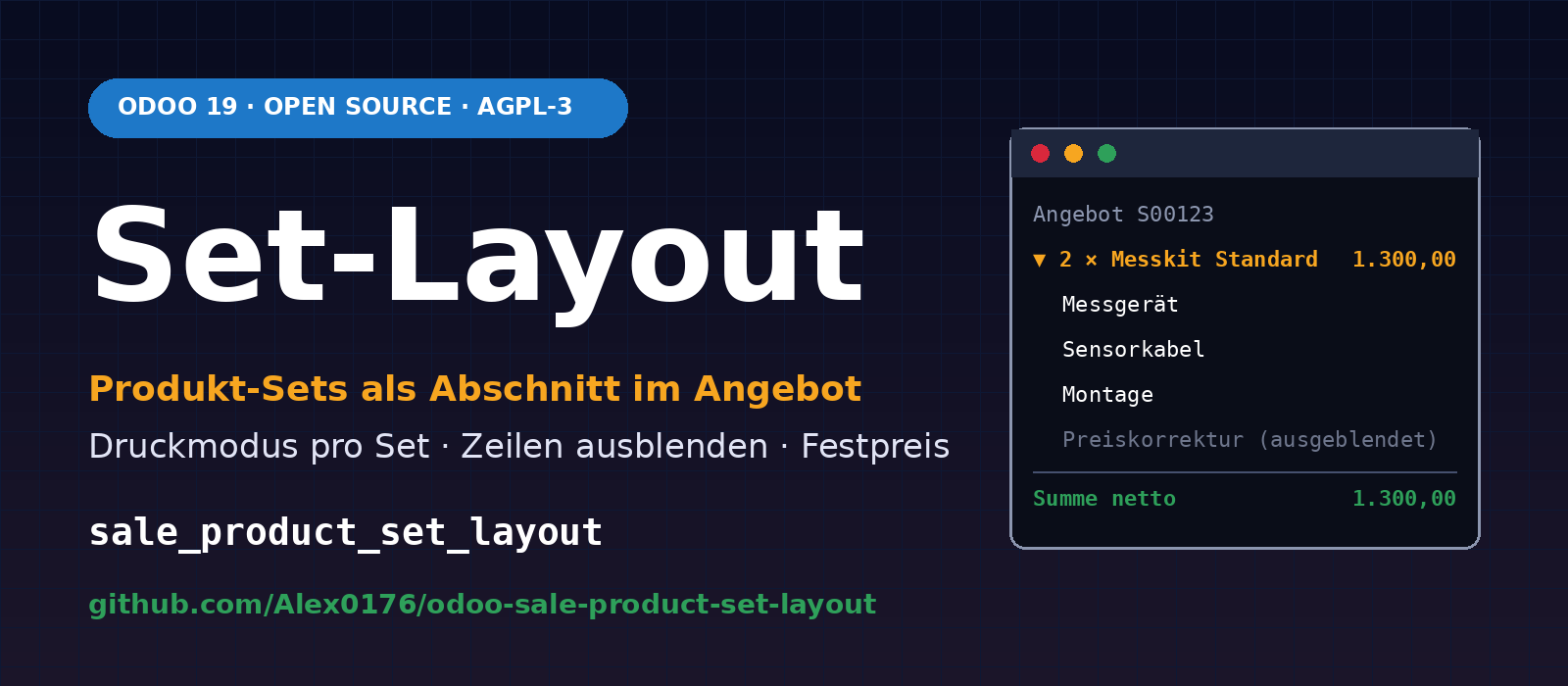
Anyone who sells bundles in Odoo, such as a measuring device with accessories and installation, a workstation with hardware and set-up, or a maintenance package made up of several services, needs two things at once in the quotation: the composition must be in the order, so that the warehouse, technicians and invoicing know what is being delivered. But the printout for the customer should not, in every case, show every single item with every single price.
The OCA module sale_product_set makes it possible to insert product sets (bills of materials for sales) into a quotation with one click. It does not decide on the print layout. For that we developed the module Sale Product Set Layout (sale_product_set_layout). It is written for Odoo 19 and is available free of charge on GitHub as free software under the AGPL-3 licence:
github.com/Alex0176/odoo-sale-product-set-layout
Contents of this article
- The problem: product sets with no influence on the print layout
- What the Module Does
- The three print modes in detail
- Hidden lines and fixed price
- Technical implementation
- Installation without unwanted side effects
- Step-by-step operation
- Tests
- Limits and legal notice
- Frequently asked questions
- Support from Biricon IT Services
The problem: product sets with no influence on the print layout
In Odoo, a product set is a prepared list of products with quantities. Instead of searching for ten items one by one, you select Add set in the quotation and get all the lines at once. This saves time and prevents forgotten items. The module sale_product_set from the repository OCA/sale-workflow does exactly that; the sets themselves come from product_set in the repository OCA/product-attribute.
In practice, three gaps remain:
- No recognisable grouping. The set lines end up as loose items in the quotation. After insertion you can no longer see which lines belong together, and the total of the set appears nowhere.
- No influence on the printout. Sometimes the customer should see every item with its price, sometimes only the package price, sometimes only a single line. That is a decision per set or per customer, not something to do by hand for every quotation.
- Price corrections are unsightly. If a package is to have a fixed price that differs from the sum of the list prices, a correction line is needed. It belongs in the calculation, but not necessarily on the customer's paper.
Odoo 19 provides the building blocks to solve this cleanly: sections and subsections in quotation lines with the options Hide prices and Hide composition (fields collapse_prices and collapse_composition). The module connects the product set with these standard options instead of inventing its own print format.
What the Module Does
- Insert the set as a section. The Add set wizard creates a section line with the name of the set, for example 2 × Standard Measuring Kit, and places the set lines beneath it. Sections within the set become subsections.
- Print mode per set. How a set is printed is defined once in the set. When inserting, the mode can be changed in the wizard for that one case.
- Hide lines. Individual lines can be marked as Do not print (on the set: Hidden). They count towards the total, but are neither printed nor shown in the customer portal. The flag passes from the quotation to the invoice.
- Fixed price per set line. A set line can carry a fixed unit price that replaces the price from the price list, for example for a hidden price correction.
Without the module (only sale_product_set) | With sale_product_set_layout |
|---|---|
| Set lines as loose items | Section line with set name, quantity in the name, lines beneath |
| Sections in the set remain sections and break up the structure | Sections in the set become subsections (line_subsection) |
| Print layout always the same | Print mode per set, changeable on insertion |
| Price correction visible on quotation and invoice | Line can be hidden, but still counts towards the total |
| Price only from the price list | Optional fixed price per set line |
| Layout ends at the quotation | Layout and hiding apply to quotation, order, invoice and customer portal |
The three print modes in detail
The print mode is a selection field print_mode on the product set. On insertion it is translated into the two standard switches of the section line. The module contains a single, easily readable mapping for this:
# Druckmodus -> (collapse_prices, collapse_composition) der Abschnittszeile
PRINT_MODE_FLAGS = {
    "detailed":   (False, False),
    "total_only": (True,  False),
    "summary":    (False, True),
}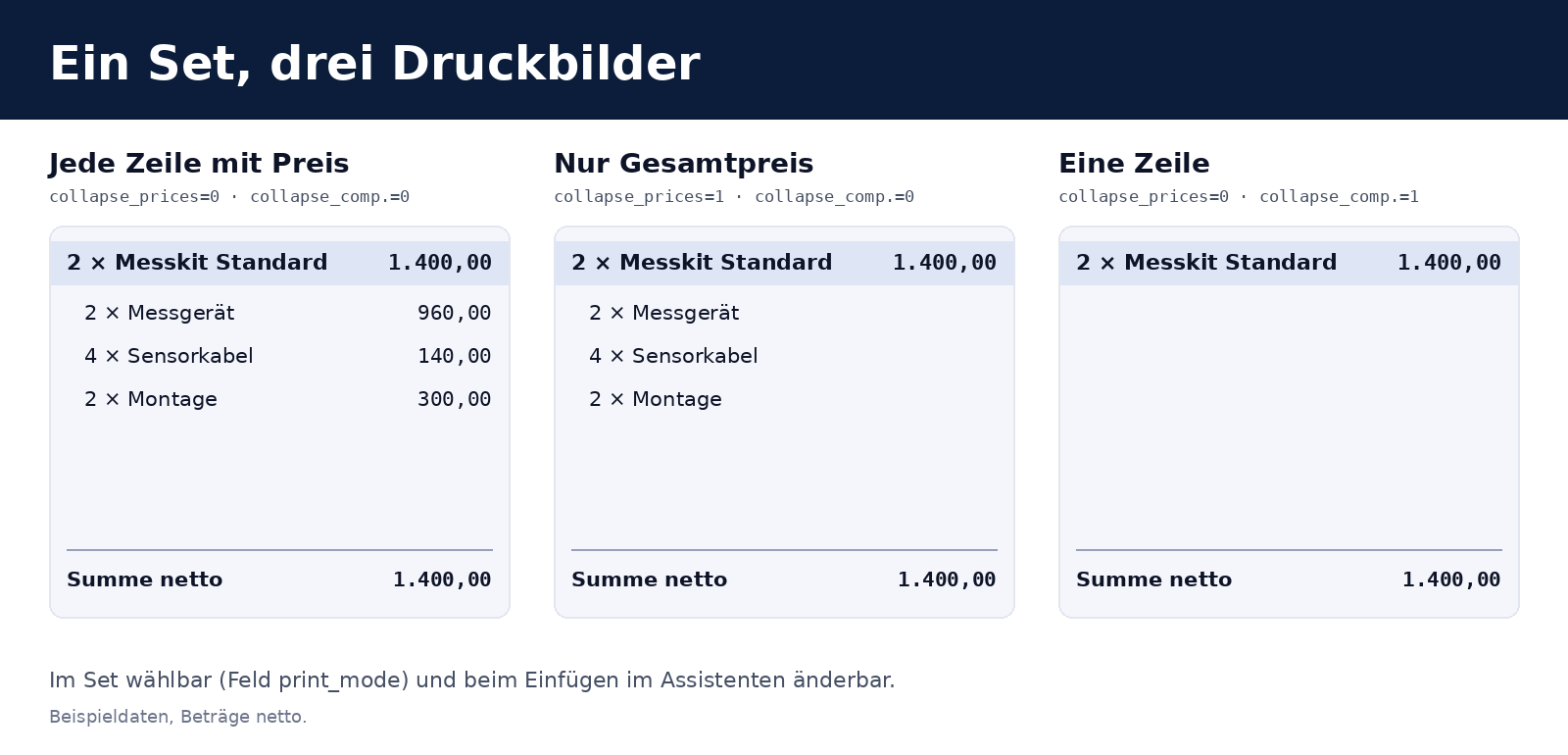
Mode (print_mode) | Display in the set | Standard option in Odoo | Print layout |
|---|---|---|---|
detailed | Every line with price | none | Section, all lines with amount |
total_only | Lines without prices, set total only | collapse_prices (Hide prices) | Section with total, lines with description and quantity only |
summary | Only one line with the set total | collapse_composition (Hide composition) | Only the section line with the total |
Because the module uses the standard options of Odoo 19 and no print format of its own, quotation, order confirmation, invoice and customer portal work without customised report templates. If you have your own report templates that take the section options into account, you get the same behaviour there too.
Hidden lines and fixed price
A common case: a package has a package price that is below the sum of the individual prices. Instead of bending the individual prices, you use a correction line with a fixed price (for example −€50.00 per set) and hide it. In the backend the invoice is traceable; on the printout the package price appears.
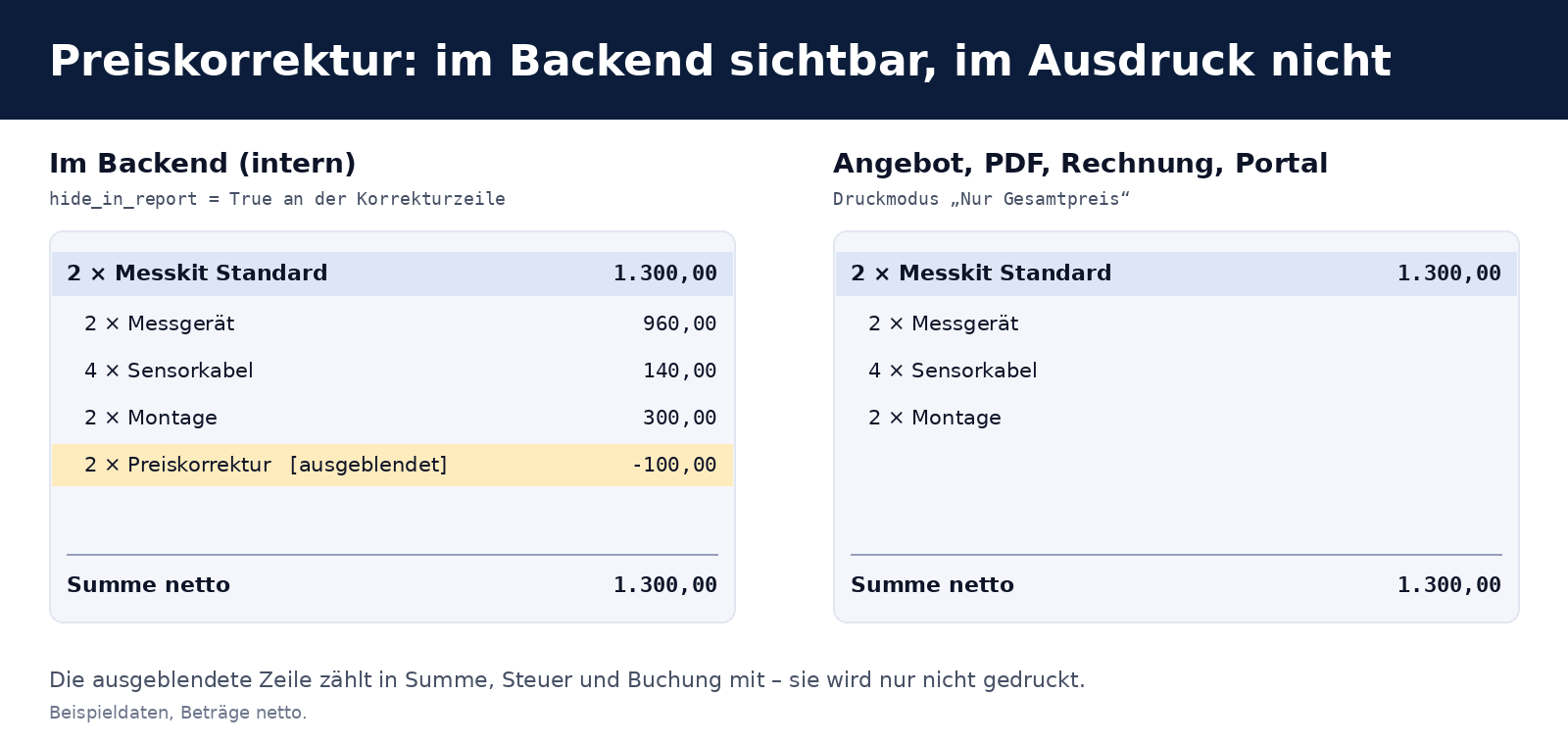
Important for understanding: the flag hide_in_report changes nothing in the calculation. Quantity, price, discount, tax, totals and journal entries are produced unchanged by standard Odoo. The line is only missing from the printout and the portal.
- On the product set: set line with Hidden and optionally Fixed price together with Unit price.
- On quotation and invoice lines: column Do not print (
hide_in_report), also for normal lines without a set. - Propagation: When the invoice is created from the order, the flag is transferred to the invoice line. When a quotation is copied, it is retained.
Technical implementation
The module is deliberately small: it extends existing models and overrides only the places where Odoo decides which lines are printed and how a set is inserted. There are no new report templates, no new models and no SQL interventions.
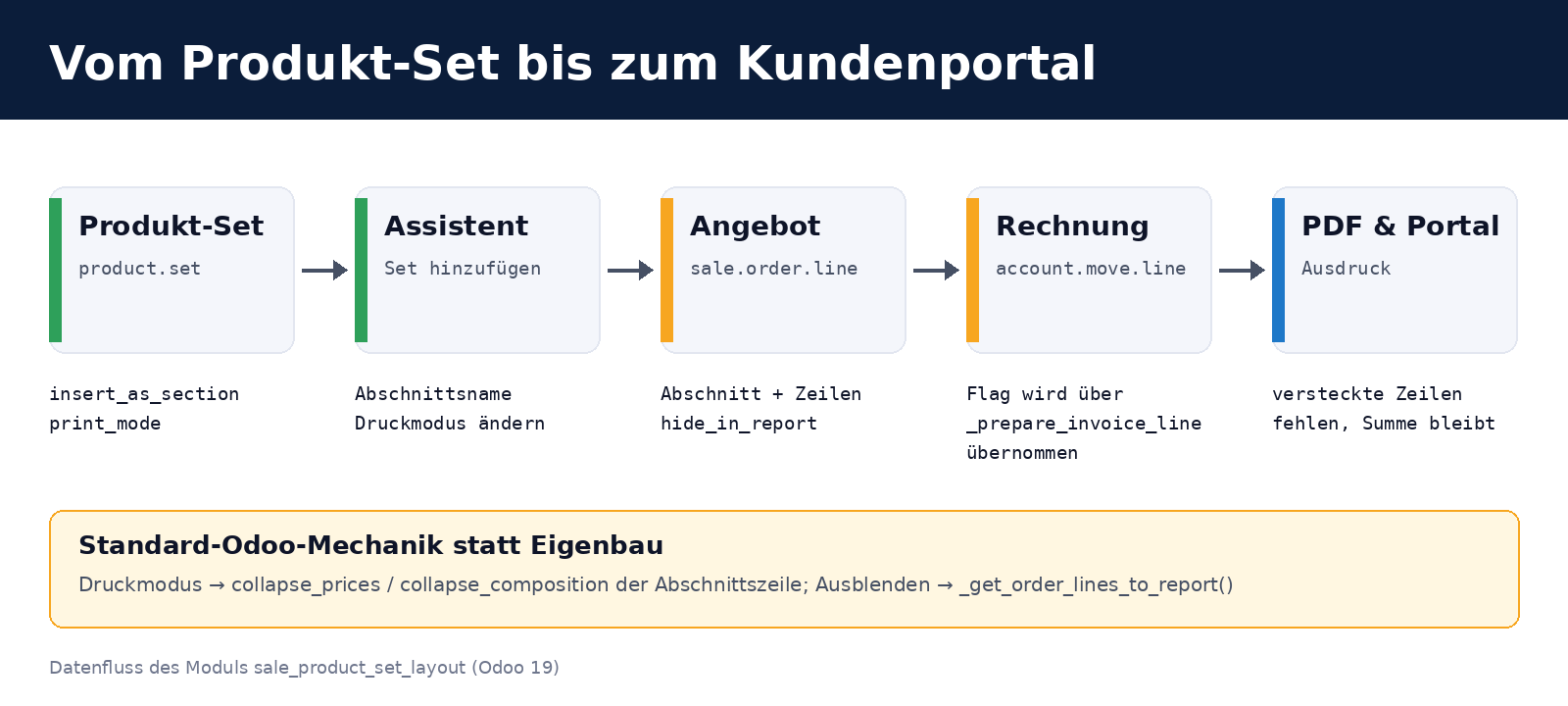
Extended models and fields
| Model | Addition |
|---|---|
product.set | Fields insert_as_section (Boolean, on by default) and print_mode (selection, required field, default detailed) |
product.set.line | Fields hide_in_report, fixed_price, price_unit; prepare_sale_order_line_values() passes them on to the quotation line |
sale.product.set.wizard | Fields insert_as_section, section_name, print_mode; _prepare_order_lines() builds the section line |
sale.order / sale.order.line | Field hide_in_report (with copy=True); _get_order_lines_to_report() skips hidden lines; _prepare_invoice_line() passes the flag on |
account.move / account.move.line | Field hide_in_report; _get_move_lines_to_report(), _get_detailed_lines() and _get_subsection_lines() filter out hidden lines; _get_aml_vals() carries the flag into the report data |
Hiding in the quotation
Odoo 19 determines the quotation lines to be printed in _get_order_lines_to_report(). The module attaches a filter there. No intervention in the report template is necessary: both the quotation's report template (sale/report/ir_actions_report_templates.xml) and the portal template (sale/views/sale_portal_templates.xml) call this method:
class SaleOrder(models.Model):
    _inherit = "sale.order"

    def _get_order_lines_to_report(self):
        return super()._get_order_lines_to_report().filtered(
            lambda line: not line.hide_in_report
        )
Passing on to the invoice
When the invoice line is created from the quotation line (_prepare_invoice_line()), the flag is copied. On the invoice side, Odoo 19 has several routes by which lines get into the report: the main list, the lines of a section and the lines of a subsection. The module therefore filters in several places (_get_move_lines_to_report() on the document, _get_detailed_lines() and _get_subsection_lines() on the line); otherwise a hidden line could reappear via one of the other routes:
class AccountMoveLine(models.Model):
    _inherit = "account.move.line"

    hide_in_report = fields.Boolean(string="Hidden in report")

    def _get_aml_vals(self, hide_taxes):
        res = super()._get_aml_vals(hide_taxes)
        res["hide_in_report"] = self.hide_in_report
        return res

    def _get_detailed_lines(self, children_lines, direct_children_lines, subsection_lines):
        res = super()._get_detailed_lines(children_lines, direct_children_lines, subsection_lines)
        return [vals for vals in res if not vals.get("hide_in_report")]

    def _get_subsection_lines(self, subsection_line, children_lines):
        res = super()._get_subsection_lines(subsection_line, children_lines)
        return [vals for vals in res if not vals.get("hide_in_report")]
The wizard: section instead of loose lines
The wizard sale.product.set.wizard from sale_product_set generates the quotation lines in _prepare_order_lines(). The module overrides this method. If Insert as section is off, it simply calls the original method, and the behaviour is then as in the OCA module. Otherwise the section line with the two standard switches is created first, followed by the set lines. Sections within the set become subsections so that they do not break up the main structure:
def _prepare_order_lines(self):
    if not self.insert_as_section:
        return super()._prepare_order_lines()
    sequence = self._get_max_sequence() + 1
    collapse_prices, collapse_composition = PRINT_MODE_FLAGS[self.print_mode or "detailed"]
    order_lines = [Command.create({
        "display_type": "line_section",
        "name": self.section_name or self.product_set_id.name,
        "sequence": sequence,
        "collapse_prices": collapse_prices,
        "collapse_composition": collapse_composition,
    })]
    for set_line in self._get_lines():
        sequence += 1
        values = set_line.prepare_sale_order_line_values(self.order_id, self.quantity, sequence)
        if values.get("display_type") == "line_section":
            values["display_type"] = "line_subsection"
        order_lines.append(Command.create(values))
    return order_lines
Decisions you do not see
- Separate compute methods in the wizard. Section name, print mode and Insert as section each have their own
computemethod (store=True,readonly=False). If all three shared the same method, an explicitly passed value for one field would reset the others. This is most noticeable when the wizard is created from code or tests with values. - Section name with quantity. If the quantity is not 1, it appears in the name (2 × Standard Measuring Kit, with a decimal comma), so that the printout shows that there are two sets and not one set with double the quantity.
- Fixed price only on product lines.
prepare_sale_order_line_values()setshide_in_reportandprice_unitonly if the set line is not a section or note line. - Standard Odoo instead of home-grown code. Print mode and hiding use existing hooks and fields of Odoo 19. This keeps updates manageable: if Odoo changes the report template, the module remains valid as long as the methods exist.
Installation without unwanted side effects
Prerequisites: Odoo 19.0, sale_product_set (OCA/sale-workflow, branch 19.0) and product_set (OCA/product-attribute, branch 19.0). The module itself depends on sale_management, sale_product_set and account.
The auto_install trap with OCA modules. Many OCA repositories contain modules with auto_install. As soon as their dependencies are present, Odoo installs them without being asked the next time you install or update. Anyone who therefore puts the complete OCA repository into the addons_path of a production instance may end up with modules nobody wanted. In OCA/product-attribute, this affects purchase_product_template_tags, for example. Our approach:
- Clone the two OCA repositories shallowly (
git clone --depth 1 --branch 19.0). - In a directory of its own, symlink only the two required modules and add that directory to the
addons_path, not the whole repositories. - Install on a test database and check which modules get the status installed in the process.
- Only then install in production, with
--workers=0, so that the call does not compete with the running service for the HTTP port.
odoo-bin -c /etc/odoo/odoo.conf -d <datenbank> -i sale_product_set_layout --stop-after-initNew fields and views are in the database after installation. If the service is running in multi-process mode, the workers reload the changed registry via the database signal. Changes to the module's Python files only take effect after the service is restarted.
Step-by-step operation
- Create a set: Sales → Products → Product Sets. Name the set, choose Insert as section and Print mode, and enter the products with quantities. Mark correction lines with Hidden and Fixed price.
- In the quotation: Click Add set and choose the set and quantity. The section name and print mode can be changed before insertion.
- Hide individual lines: In the quotation or invoice, activate the column Do not print.
- Check: Open the preview or PDF. Customers see the same presentation in the portal.
Tests
The module comes with six automated tests, which we run against a test database before anything goes into production:
- Insertion as a section including print mode and subsection
- Hidden line is missing from the lines to be printed
- Mode Single line (
summary) - Insertion without a section, the original behaviour
- Invoice takes over the flag
hide_in_report, the line is missing from_get_move_lines_to_report(), the section total still includes it - Invoice in mode Total price only does not show the hidden line in the section lines, the section total remains complete
odoo-bin -d <testdatenbank> -i sale_product_set_layout \
         --test-enable --test-tags=/sale_product_set_layout --stop-after-init
The German translation is in i18n/de.po.
Limits and legal notice
- Layout only. The module does not change how Odoo calculates prices, discounts or taxes. It only changes what is printed and shown in the portal.
- Hidden lines are visible in the backend. The flag affects the printout and the portal, not the on-screen view of employees.
- Check invoice details. Hidden lines count towards the total but do not appear on the document. Whether this is compatible with the requirements for invoices in your country, for example with the prescribed description of the goods delivered or services rendered, you should clarify with your tax adviser before using it on invoices. Hiding is less problematic on quotations. This article is not legal advice.
- Tested for Odoo 19. We developed and tested the module for Odoo 19.0 Community. It uses section options that exist in this form in Odoo 19. We have not tested it for other versions.
Frequently asked questions
Why do I need the module if Odoo 19 already supports sections?
The section options exist in Odoo itself. What was missing was the connection to the product set: a set should be inserted automatically as a section, with the print mode stored in the set. Without the module, you have to create and configure the section line by hand after every insertion.
How do “Hide prices” and “Hide composition” differ?
“Hide prices” (collapse_prices) leaves the lines in place but shows no amounts, only the total on the section. “Hide composition” (collapse_composition) hides the lines entirely; the customer sees only the section with the total.
Does a hidden line count towards the invoice total?
Yes. Hidden lines remain in the total, tax and accounting entry. The flag only affects the presentation on the printout and in the customer portal.
Can I still change the print mode on insertion?
Yes. The mode comes as a default from the set and can be changed in the wizard for that particular insertion. The set itself remains unchanged.
What happens if I switch off Insert as section?
Then the wizard behaves as in the OCA module sale_product_set: the set lines are inserted without a section.
Does the module unexpectedly install further modules?
The module itself does not. With OCA repositories, however, auto_install modules can come along if you put whole repositories into the addons_path. Therefore link only the two required modules (see the Installation section).
Does the module run with Odoo Enterprise?
The module depends only on Community modules (sale_management, account) and the two OCA modules. We use it on Odoo 19 Community. We have not tested it on Enterprise.
Under which licence is the module released?
Under the AGPL-3. You may use, adapt and redistribute it, as long as changes remain under the same licence. Bug reports and suggestions for improvement are welcome as an issue in the GitHub repository .
Support from Biricon IT Services
We look after Odoo installations for small and medium-sized businesses: from implementation through customisations and migrations to ongoing operation. If you want to adapt product sets, quotation templates or reports in Odoo 19 to your processes, or if you want to review a module like this one and bring it safely into your production instance, we will be glad to support you. You can find more in-house developments in our blog, for example Merging draft invoices and Automatically matching bank payments to invoices.
As of: 2 November 2026. Module version 19.0.1.0.0. The sample data in the figures is freely chosen; amounts are net.