
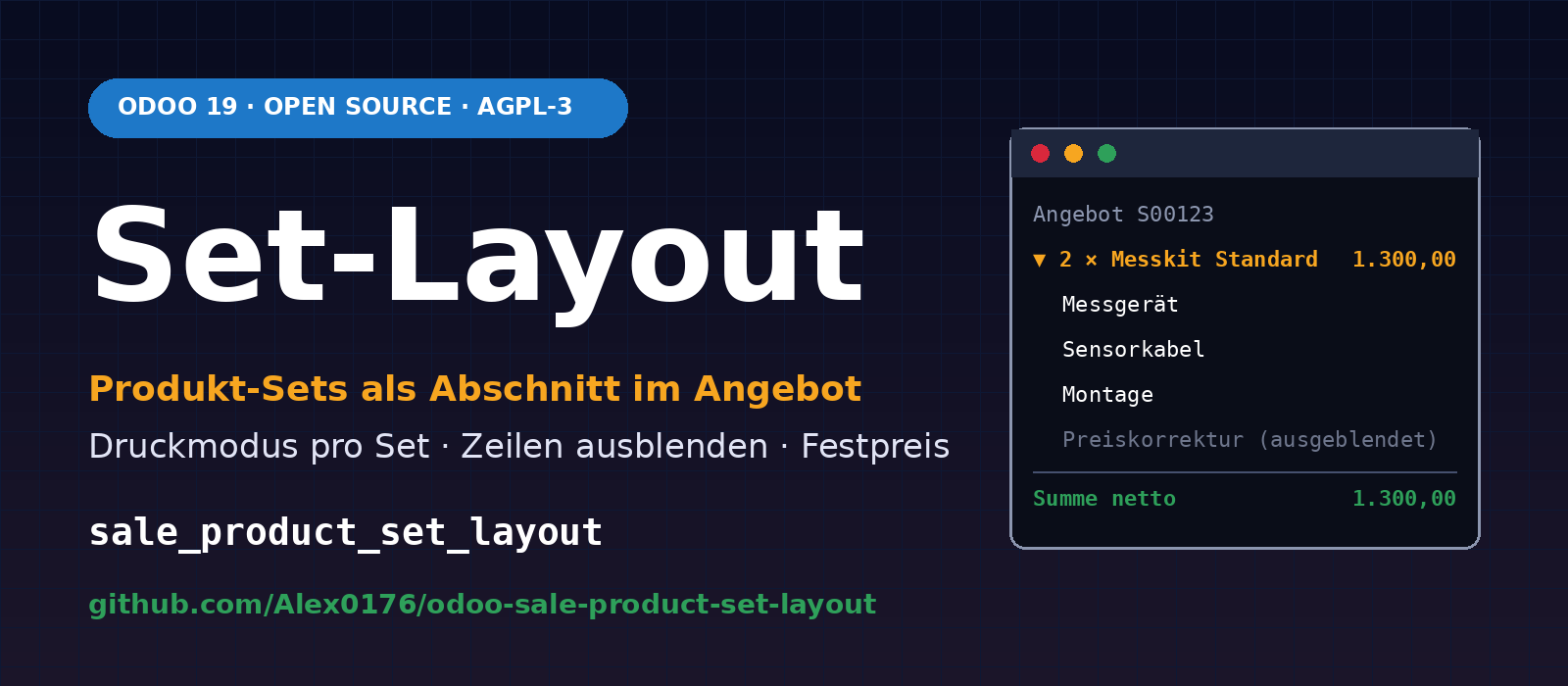
If you sell packages in Odoo, such as a measuring instrument with accessories and installation, a workstation with hardware and setup, or a maintenance package comprising several services, your quotation needs to do two things at once: the contents must be recorded in the order so that warehouse, technical and invoicing teams know what is being supplied. However, the printed document for the customer should not necessarily show every individual item and its price.
The OCA module sale_product_set lets you add product sets (bills of materials for sales) to a quotation with a single click. It does not control the printed layout. That is why we developed Sale Product Set Layout (sale_product_set_layout). It is written for Odoo 19 and is available free of charge on GitHub as free software under the AGPL-3 licence:
github.com/Alex0176/odoo-sale-product-set-layout
Contents
- The problem: product sets with no control over the printed layout
- What the module does
- The three print modes in detail
- Hidden lines and fixed prices
- Technical implementation
- Installation without unwanted side effects
- Step-by-step instructions
- Tests
- Limitations and legal notice
- Frequently asked questions
- Support from Biricon IT Services
The problem: product sets with no control over the printed layout
In Odoo, a product set is a predefined list of products and quantities. Instead of finding ten items individually, you select Add set in the quotation and get all the lines at once. This saves time and prevents items from being forgotten. The sale_product_set module from the repository OCA/sale-workflow does exactly that; the sets themselves come from product_set in the repository OCA/product-attribute.
In practice, three gaps remain:
- No clear grouping. Set lines appear as separate items in the quotation. Once inserted, there is no indication of which lines belong together, and the set total is not shown anywhere.
- No control over the printed document. Sometimes the customer should see every item with its price, sometimes just the package price, and sometimes only a single line. This choice should be made for each set or customer, without having to adjust every quotation manually.
- Price adjustments are awkward. If a package is to have a fixed price that differs from the sum of the list prices, an adjustment line is needed. It belongs in the calculation, but not necessarily on the customer's document.
Odoo 19 provides the building blocks for a clean solution: sections and subsections in quotation lines, with the options Hide prices and Hide composition (fields collapse_prices and collapse_composition). The module connects the product set to these standard options rather than introducing a separate print format.
What the module does
- Insert the set as a section. The Add set wizard creates a section line with the set's name, for example 2 × Standard measuring kit, and places the set lines underneath. Sections within the set become subsections.
- Print mode for each set. Define how the set is printed once in the set itself. When inserting it, you can change the mode in the wizard for that particular instance.
- Hide lines. Individual lines can be marked as Do not print (Hidden in the set). They count towards the total but are neither printed nor displayed in the customer portal. The flag is carried over from the quotation to the invoice.
- Fixed price for each set line. A set line can have a fixed unit price that overrides the pricelist price, for example for a hidden price adjustment.
Without the module (sale_product_set only) | With sale_product_set_layout |
|---|---|
| Set lines appear as separate items | Section line with the set name, including the quantity in the name, followed by the set lines |
| Sections within the set remain sections and break up the structure | Sections within the set become subsections (line_subsection) |
| Printed layout is always the same | Print mode for each set, adjustable when inserting |
| Price adjustment visible on quotations and invoices | Line can be hidden while still counting towards the total |
| Price taken only from the pricelist | Optional fixed price for each set line |
| Layout applies only to the quotation | Layout and hidden lines apply to quotations, orders, invoices and the customer portal |
The three print modes in detail
The print mode is a selection field, print_mode, on the product set. When the set is inserted, it is mapped to the two standard toggles on the section line. The module uses a single, easy-to-read mapping for this:
# Print mode -> (collapse_prices, collapse_composition) on the section line
PRINT_MODE_FLAGS = {
    "detailed":   (False, False),
    "total_only": (True,  False),
    "summary":    (False, True),
}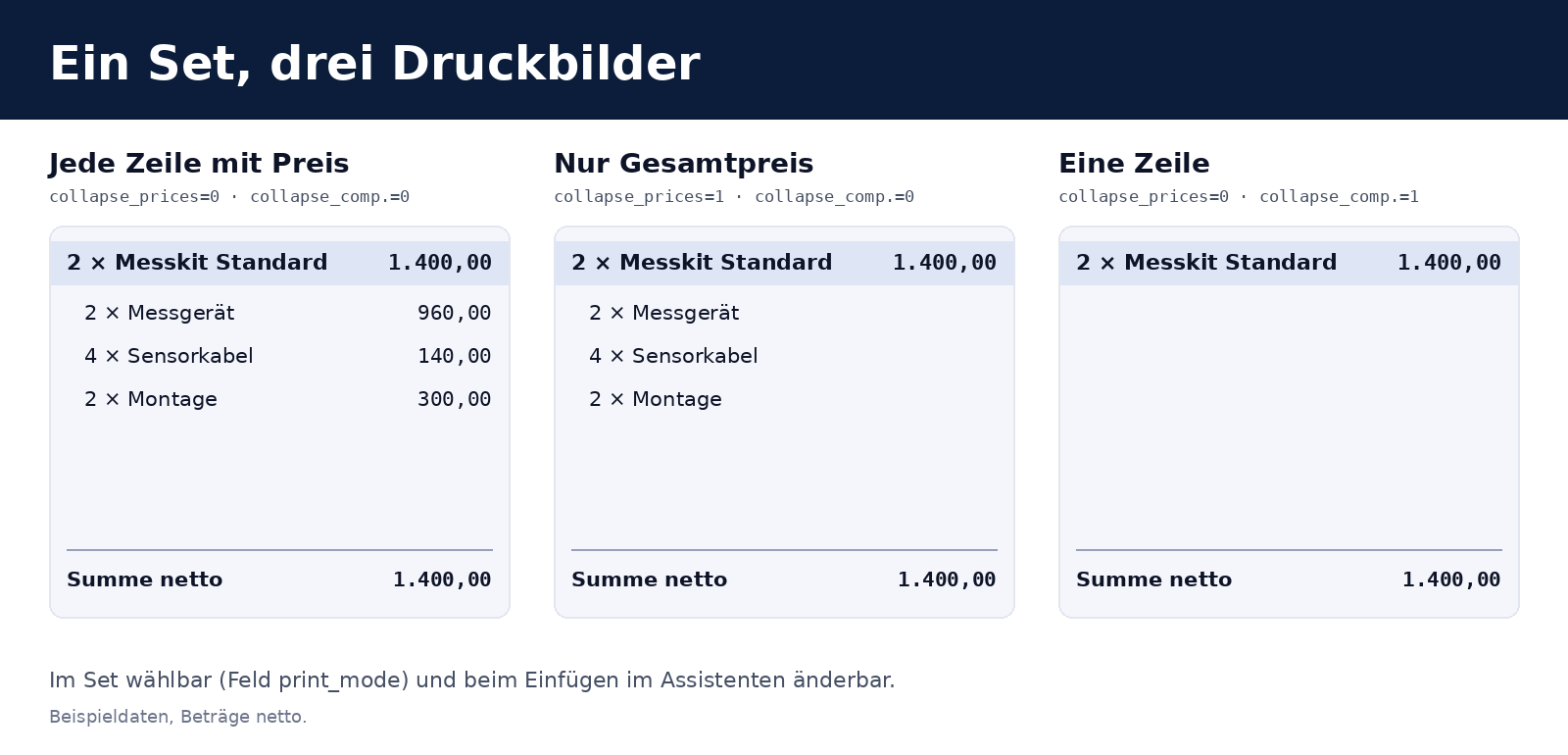
Mode (print_mode) | Label in the set | Standard Odoo option | Printed layout |
|---|---|---|---|
detailed | Every line with its price | none | Section and all lines with amounts |
total_only | Lines without prices, set total only | collapse_prices (Hide prices) | Section with total; lines show only descriptions and quantities |
summary | A single line with the set total | collapse_composition (Hide composition) | Only the section line with the total |
Because the module uses Odoo 19's standard options rather than a separate print format, quotations, order confirmations, invoices and the customer portal work without customised report templates. Custom report templates that respect the section options also support this behaviour.
Hidden lines and fixed prices
A common case: a package has a price below the sum of its individual prices. Instead of manipulating the individual prices, you add an adjustment line with a fixed price (for example, −€50.00 per set) and hide it. The calculation remains clear in the backend, while the printed document shows the package price.
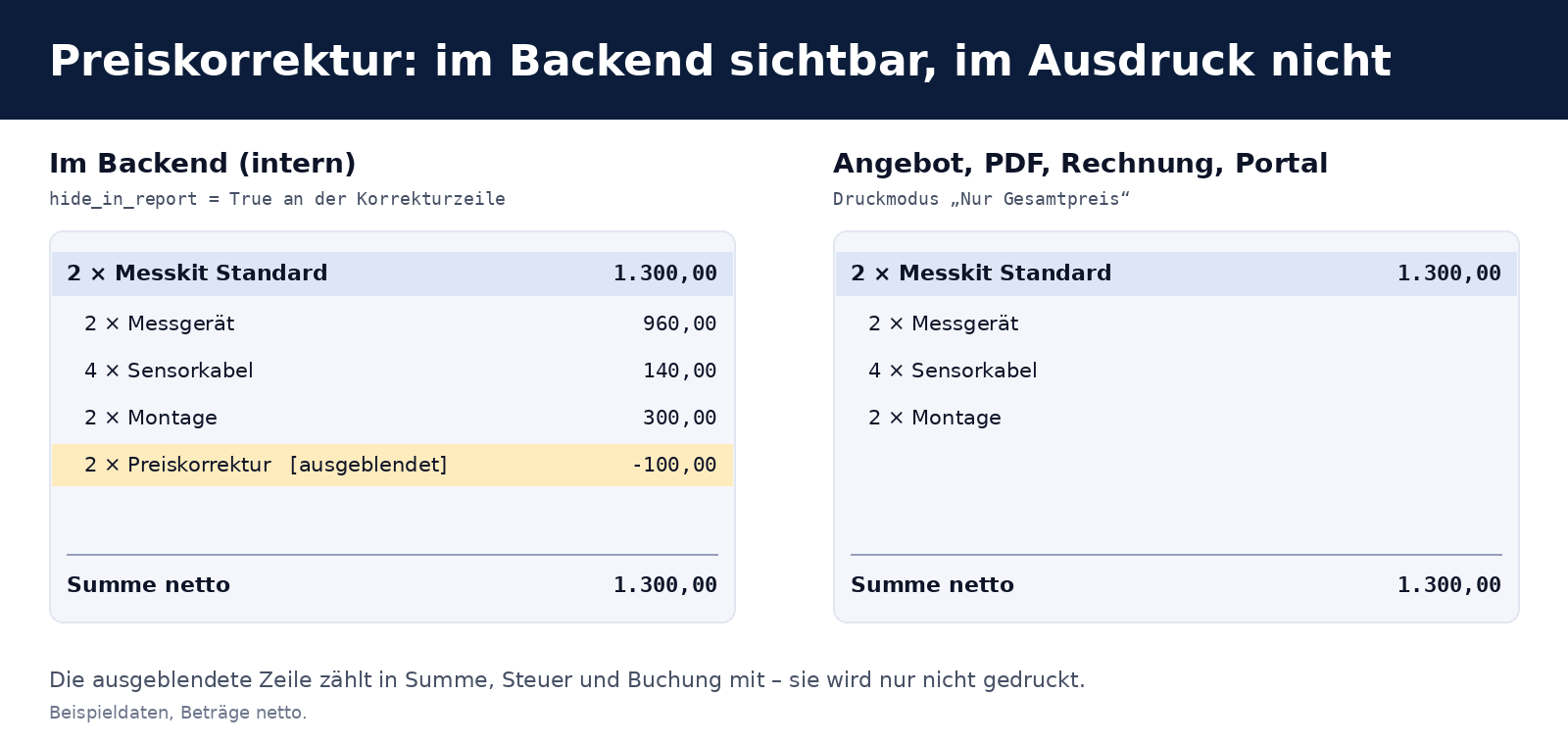
The key point: the hide_in_report flag does not affect the calculation. Quantity, price, discount, tax, totals and journal entries are all handled as usual by standard Odoo. The line is simply omitted from the printed document and the portal.
- On the product set: set line with Hidden and optionally Fixed price together with a Unit price.
- On quotation and invoice lines: Do not print column (
hide_in_report), also available for ordinary lines outside a set. - Carrying the flag over: when an invoice is created from the order, the flag is transferred to the invoice line. It is retained when a quotation is copied.
Technical implementation
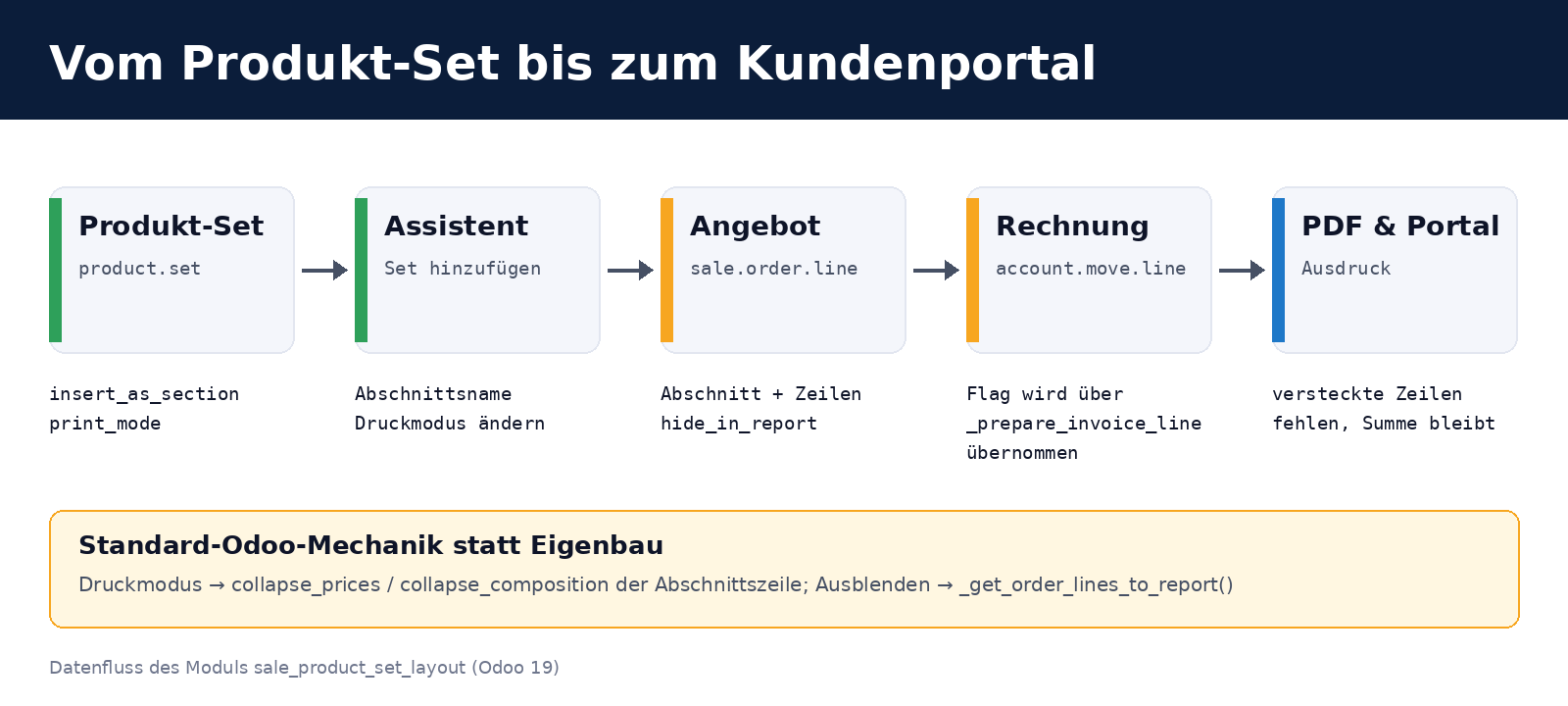
The module is deliberately small: it extends existing models and overrides only the points where Odoo decides which lines to print and how to insert a set. There are no new report templates, no new models and no direct SQL changes.
Extended models and fields
| Model | Addition |
|---|---|
product.set | Fields insert_as_section (Boolean, enabled by default) and print_mode (selection, required, defaults to detailed) |
product.set.line | Fields hide_in_report, fixed_price, price_unit; prepare_sale_order_line_values() passes them to the quotation line |
sale.product.set.wizard | Fields insert_as_section, section_name, print_mode; _prepare_order_lines() builds the section line |
sale.order / sale.order.line | hide_in_report field (with copy=True); _get_order_lines_to_report() skips hidden lines; _prepare_invoice_line() passes the flag on |
account.move / account.move.line | hide_in_report field; _get_move_lines_to_report(), _get_detailed_lines() and _get_subsection_lines() filter out hidden lines; _get_aml_vals() includes the flag in the report data |
Hiding lines in quotations
Odoo 19 determines which quotation lines to print in _get_order_lines_to_report(). The module adds a filter there. There is no need to modify the report template: both the quotation report template (sale/report/ir_actions_report_templates.xml) and the portal template (sale/views/sale_portal_templates.xml) call this method:
class SaleOrder(models.Model):
    _inherit = "sale.order"

    def _get_order_lines_to_report(self):
        return super()._get_order_lines_to_report().filtered(
            lambda line: not line.hide_in_report
        )
Passing the flag on to the invoice
The flag is copied when an invoice line is created from a quotation line (_prepare_invoice_line()). In Odoo 19, invoice lines can reach the report through several routes: the main list, the lines within a section and the lines within a subsection. The module therefore filters in several places (_get_move_lines_to_report() on the document, and _get_detailed_lines() and _get_subsection_lines() on the line). Otherwise, a hidden line could reappear through one of the other routes:
class AccountMoveLine(models.Model):
    _inherit = "account.move.line"

    hide_in_report = fields.Boolean(string="Hidden in report")

    def _get_aml_vals(self, hide_taxes):
        res = super()._get_aml_vals(hide_taxes)
        res["hide_in_report"] = self.hide_in_report
        return res

    def _get_detailed_lines(self, children_lines, direct_children_lines, subsection_lines):
        res = super()._get_detailed_lines(children_lines, direct_children_lines, subsection_lines)
        return [vals for vals in res if not vals.get("hide_in_report")]

    def _get_subsection_lines(self, subsection_line, children_lines):
        res = super()._get_subsection_lines(subsection_line, children_lines)
        return [vals for vals in res if not vals.get("hide_in_report")]
The wizard: a section instead of separate lines
The sale.product.set.wizard wizard from sale_product_set creates quotation lines in _prepare_order_lines(). The module overrides this method. If Insert as Section is switched off, it simply calls the original method, preserving the OCA module's behaviour. Otherwise, it first creates the section line with the two standard toggles, followed by the set's lines. Sections within the set become subsections so that they do not break up the main structure:
def _prepare_order_lines(self):
    if not self.insert_as_section:
        return super()._prepare_order_lines()
    sequence = self._get_max_sequence() + 1
    collapse_prices, collapse_composition = PRINT_MODE_FLAGS[self.print_mode or "detailed"]
    order_lines = [Command.create({
        "display_type": "line_section",
        "name": self.section_name or self.product_set_id.name,
        "sequence": sequence,
        "collapse_prices": collapse_prices,
        "collapse_composition": collapse_composition,
    })]
    for set_line in self._get_lines():
        sequence += 1
        values = set_line.prepare_sale_order_line_values(self.order_id, self.quantity, sequence)
        if values.get("display_type") == "line_section":
            values["display_type"] = "line_subsection"
        order_lines.append(Command.create(values))
    return order_lines
Decisions behind the scenes
- Separate compute methods in the wizard. The section name, print mode and Insert as Section each have their own
computemethod (store=True,readonly=False). If all three shared a method, an explicitly supplied value for one field would reset the others. This is particularly noticeable when the wizard is created with values supplied by code or tests. - Quantity in the section name. If the quantity is anything other than 1, it is included in the name (2 × Messkit Standard, using a comma as the decimal separator), so the printout makes it clear that there are two sets rather than one set with twice the quantity.
- Fixed prices only on product lines.
prepare_sale_order_line_values()setshide_in_reportandprice_unitonly if the set line is neither a section nor a note. - Standard Odoo features rather than custom mechanisms. Print modes and line hiding use existing Odoo 19 hooks and fields. This keeps updates manageable: if Odoo changes the report template, the module continues to work as long as the methods remain available.
Installation without unwanted side effects
Requirements: Odoo 19.0, sale_product_set (OCA/sale-workflow, branch 19.0) and product_set (OCA/product-attribute, branch 19.0). The module itself depends on sale_management, sale_product_set and account.
The auto_install trap in OCA modules. Many OCA repositories contain modules with auto_install. Once their dependencies are available, Odoo installs them automatically the next time modules are installed or updated. Adding an entire OCA repository to a production instance's addons_path can therefore result in modules being installed that nobody wanted. In OCA/product-attribute, one example is purchase_product_template_tags. Our approach:
- Create shallow clones of the two OCA repositories (
git clone --depth 1 --branch 19.0). - Create symbolic links to only the two required modules in a separate directory, and add that directory to
addons_path, rather than the entire repositories. - Install on a test database and check which modules acquire the Installed status.
- Only then install in production, using
--workers=0so that the command does not compete with the running service for the HTTP port.
odoo-bin -c /etc/odoo/odoo.conf -d <datenbank> -i sale_product_set_layout --stop-after-initThe new fields and views are in the database after installation. If the service runs with multiple processes, the workers reload the updated registry in response to the database signal. Changes to the module's Python files only take effect after the service is restarted.
Step-by-step instructions
- Create a set: Sales → Products → Product Sets. Name the set, select Insert as Section and a Print Mode, and add the products with their quantities. Mark adjustment lines as Hidden and give them a Fixed Price.
- In the quotation: Click Add Set and choose the set and quantity. You can change the section name and print mode before inserting it.
- Hide individual lines: Enable the Do Not Print column in the quotation or invoice.
- Check: Open the preview or PDF. Customers see the same layout in the portal.
Tests
The module includes six automated tests, which we run against a test database before deploying anything to production:
- Insertion as a section, including print mode and subsection
- Hidden lines are excluded from the lines to be printed
- Single Line mode (
summary) - Insertion without a section, preserving the original behaviour
- The invoice inherits the
hide_in_reportflag, the line is excluded from_get_move_lines_to_report(), and the section total still includes it - An invoice in Total Price Only mode does not show the hidden line among the section lines, while the section total remains complete
odoo-bin -d <testdatenbank> -i sale_product_set_layout \
         --test-enable --test-tags=/sale_product_set_layout --stop-after-init
The German translation is in i18n/de.po.
Limitations and legal notice
- Layout only. The module does not change how Odoo calculates prices, discounts or taxes. It only changes what is printed and displayed in the portal.
- Hidden lines remain visible in the backend. The flag affects printouts and the portal, not what staff see on screen.
- Check invoice requirements. Hidden lines count towards the total but do not appear on the document. Before using this on invoices, check with your tax adviser whether it meets your country's invoicing requirements, such as the mandatory description of goods supplied or services provided. Hiding lines on quotations is less problematic. This article does not constitute legal advice.
- Tested for Odoo 19. We developed and tested the module for Odoo 19.0 Community. It uses section options available in this form in Odoo 19. We have not tested it with other versions.
Frequently asked questions
Why do I need the module if Odoo 19 already supports sections?
The section options are built into Odoo. What was missing was the link to product sets: a set should automatically be inserted as a section, using the print mode saved in the set. Without the module, you have to create and configure the section line manually every time you insert a set.
What is the difference between “Hide Prices” and “Hide Composition”?
“Hide Prices” (collapse_prices) keeps the lines visible but hides their amounts, showing only the section total. “Hide Composition” (collapse_composition) hides the lines entirely, so the customer sees only the section and its total.
Does a hidden line count towards the invoice total?
Yes. Hidden lines remain included in totals, tax calculations and accounting entries. The flag only affects how they are displayed on printouts and in the customer portal.
Can I still change the print mode when inserting a set?
Yes. The set supplies the default mode, but you can change it in the wizard for each insertion. This leaves the set itself unchanged.
What happens if I switch off Insert as Section?
The wizard then behaves like the OCA sale_product_set module: the set's lines are inserted without a section.
Does the module install other modules unexpectedly?
The module itself does not. However, adding entire OCA repositories to addons_path can trigger the installation of auto_install modules. Create links to only the two required modules instead (see the Installation section).
Does the module work with Odoo Enterprise?
The module depends only on Community modules (sale_management, account) and the two OCA modules. We use it on Odoo 19 Community. We have not tested it on Enterprise.
What licence is the module released under?
AGPL-3. You may use, modify and redistribute it, provided that changes remain under the same licence. Bug reports and suggestions for improvements can be submitted as issues in the GitHub repository and are welcome.
Support from Biricon IT Services
We support Odoo installations for small and medium-sized businesses, from implementation, customisation and migration through to day-to-day operation. If you would like to adapt product sets, quotation templates or reports in Odoo 19 to your workflows, or assess a module like this and deploy it safely to your production instance, we are happy to help. You can find more of our own developments on our blog, including Merge draft invoices and Automatically match bank payments to invoices.
As of 2 November 2026. Module version 19.0.1.0.0. The example data in the illustrations is fictitious; amounts exclude VAT.